

Use Flash Fill
If you start typing a pattern in a new column (like first names from full names), Excel automatically recognizes it. Just press Ctrl + E to fill the rest instantly.
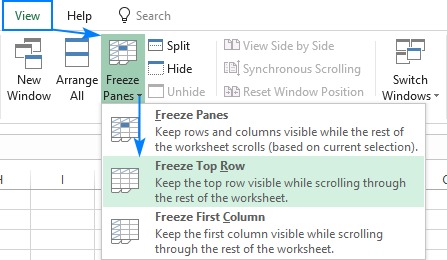
Freeze Rows or Columns
Keep headers visible while scrolling through long sheets: Go to View → Freeze Panes and choose your preferred option.
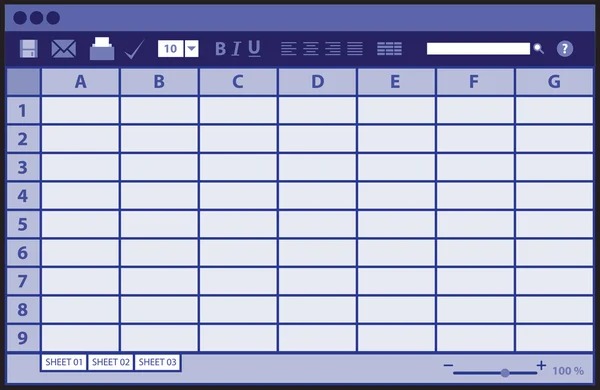
Turn Data into Tables Instantly
Select your data and press Ctrl + T, Excel automatically formats it as a table with filters, easy sorting, and total options.
Instantly Remove Duplicates
If you’re working with long lists, like customer names or inventory.
Excel can remove duplicate entries in seconds:
1) Select your data range.
2) Go to the Data tab → click Remove Duplicates.
3) Choose the columns to check and click OK.
✅ Excel will keep one copy of each unique entry.
Perfect for cleaning up contact lists or reports before importing data elsewhere.

Combine Text from Multiple Cells with One Formula
Need to merge first and last names, or city and state into one cell?
Use the TEXTJOIN function for clean, flexible results.
Example:
=TEXTJOIN(" ", TRUE, A2, B2)
This joins the text in A2 and B2 with a space in between, skipping any blank cells automatically.
Use Conditional Formatting to Highlight Important Data
Bring your data to life by letting Excel highlight what matters most.
For example, to highlight sales over $10,000:
1) Select your range.
2) Go to Home → Conditional Formatting → Highlight Cell Rules → Greater Than…
Enter 10000 and choose a format (like green fill).

Quickly Insert Today’s Date or Time
No need to type dates or times manually. Use these shortcuts instead:
Ctrl + ; → today’s date
Ctrl + Shift + ; → current time
Combine both for a full timestamp!
⏰ Great for logs, reports, or tracking entries.

Create a Chart in Seconds
Turn your data into a clear visual instantly:
1) Highlight your data (include headers).
2) Press Alt + F1 for an in-sheet chart (or F11 for a new sheet).
3) Adjust the style using Chart Design.
📊 Perfect for quick visual summaries or presentations.
Use Conditional Formatting to Highlight Important Data
Bring your data to life by letting Excel highlight what matters most.
For example, to highlight sales over $10,000:
1) Select your range.
2) Go to Home → Conditional Formatting → Highlight Cell Rules → Greater Than…
Enter 10000 and choose a format (like green fill).